New in travee+, November 2026: Excel mode for hotel, vehicle and transfer rates.
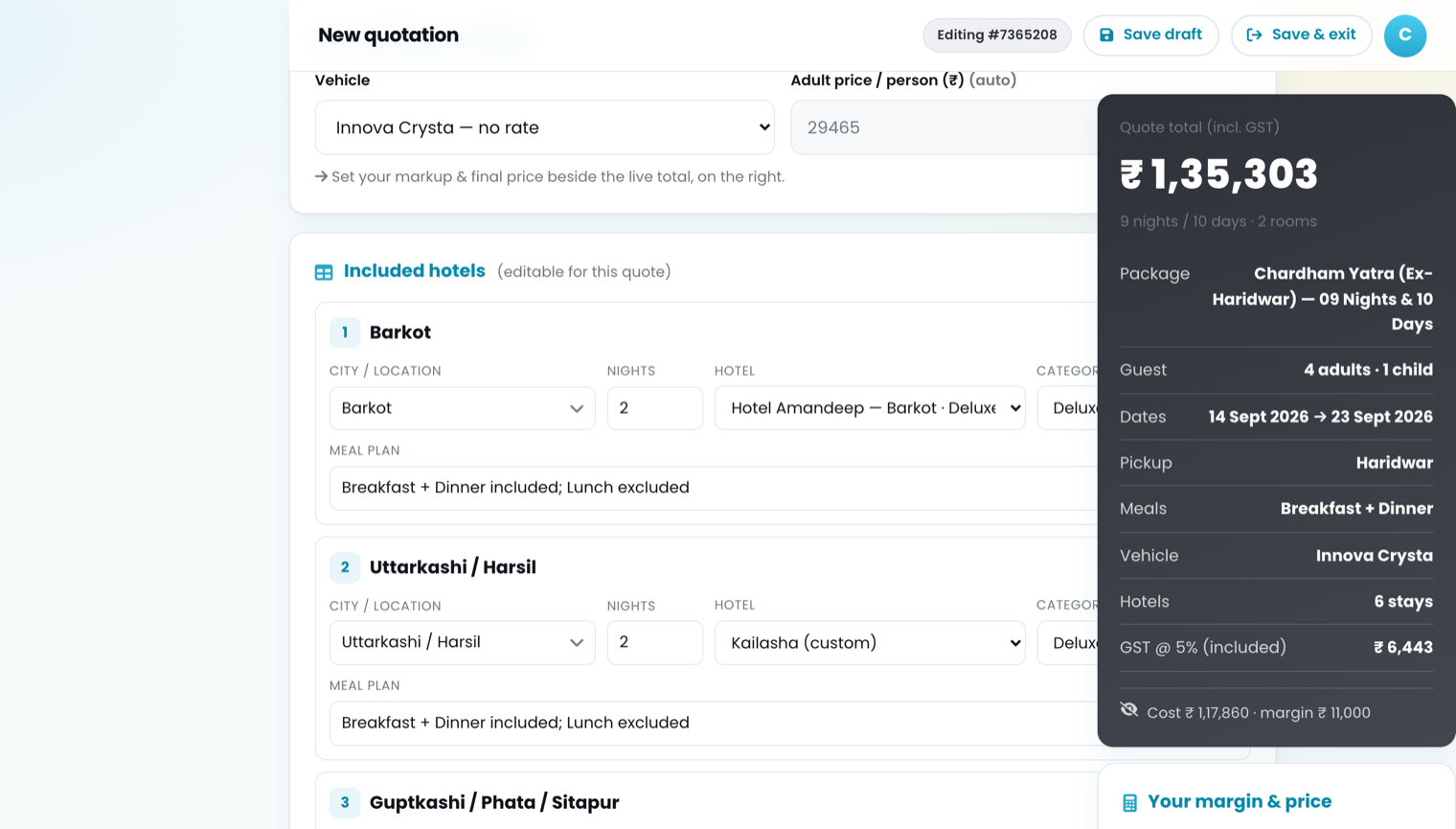
A rate season used to mean opening every hotel one by one and typing each price again. Now you can bulk update hotel rates, vehicle day rates and transfer rates in one spreadsheet inside travee+: type, paste from Excel, raise a whole category by a %, or upload a vendor's rate list as an .xlsx or .csv file. Everything you save is used by every new quotation straight away.
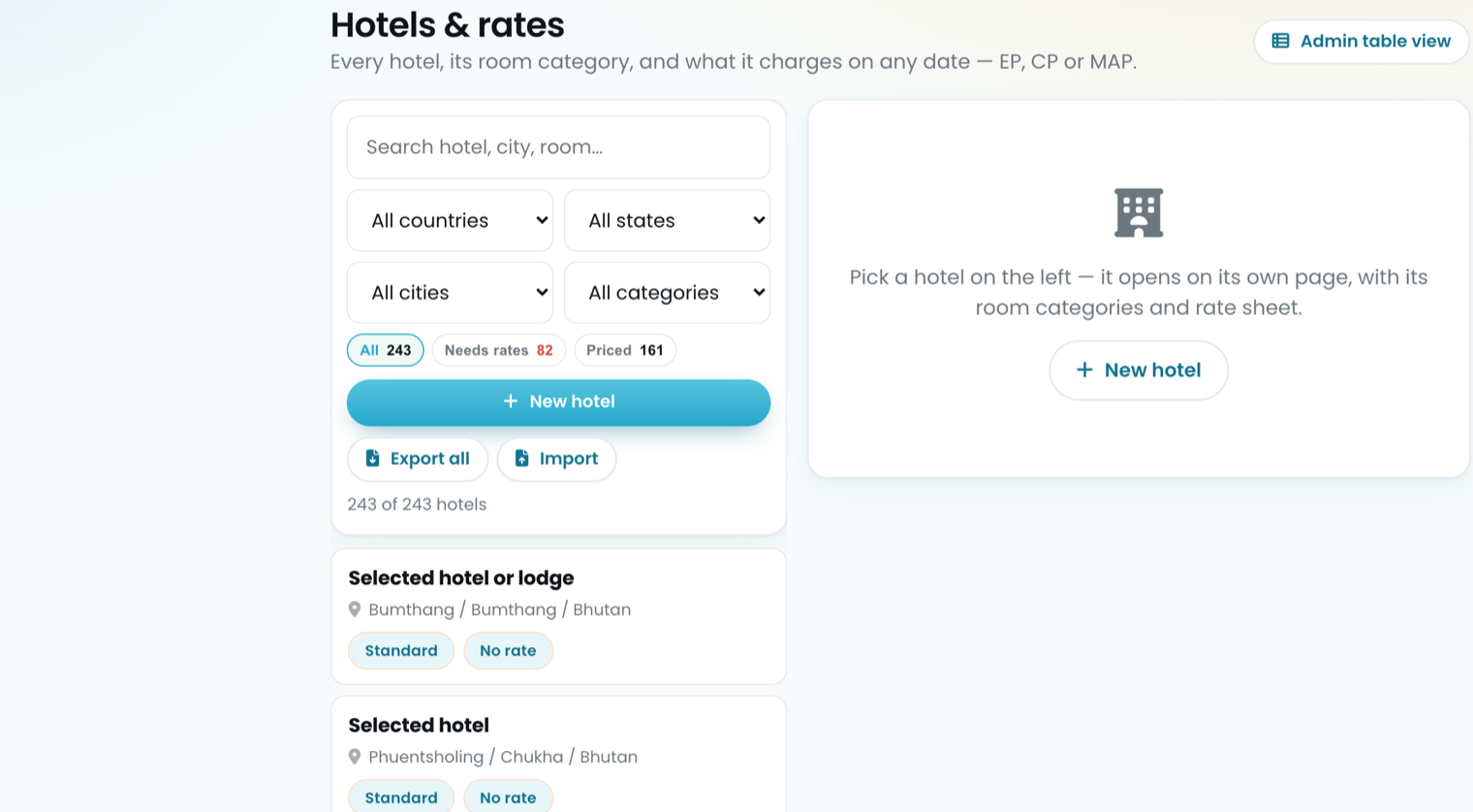
Excel mode is on three screens: Hotels, Vehicles and the new Service rates page. Each has a Normal / Excel mode switch next to its filters, and the sheet shows only what the filters show, so you work on one place, one hotel category or one vendor at a time.
1. Edit hotel rates in a spreadsheet
Open Hotels, filter to the hotels you want (a city, a category), and press Excel mode. Each hotel reads as one block: its name shows once, each room type has four rows (DBL for the double room, EXB for an extra bed, C-With-B and C-No-B for a child with or without a bed), and the meal plans EP, CP and MAP are the columns.
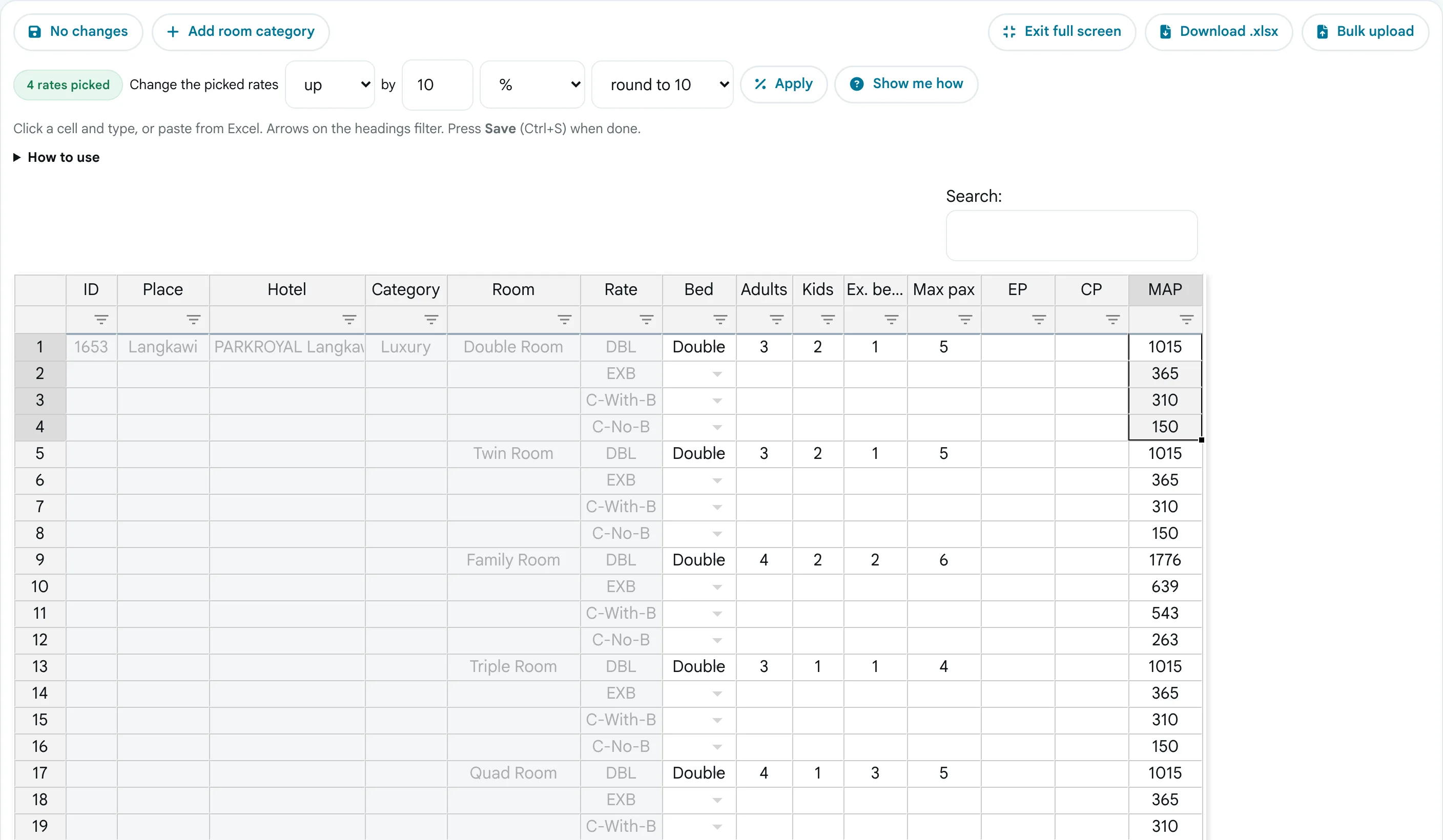
One sheet for every hotel in the filter. Grey cells are names, not prices.
- Click a price and type, or paste a block of prices copied from Excel. Formulas work too:
type
=ROUND(N2*1.1,-1)to add 10% and round to 10. - For a new room type (Single, Family, Suite), click any cell of the hotel and press Add room category. Give it a name and a bed type; four rows appear for its rates.
- Each room's Bed, Adults, Kids, Ex. beds and Max pax sit on its DBL row. The quote uses them to fit travellers into rooms, so fill them in for a new room.
- The Save button counts your changes ("Save 6 changes"). Press it, or Ctrl+S.
The sheet edits the all-year rates. Seasons stay on each hotel's own page, as described in Your hotel rate sheet is the quotation.
2. Raise a whole hotel category or vendor by a %
The usual rate change is not one price but a whole row of them: every Luxury hotel up 10%, every transfer of one vendor up RM 20. Pick the rates, then change them in one go.
- Click the first rate, hold Shift and click the last (or drag across them). The chip says how many you picked, for example 4 rates picked.
- In Change the picked rates, choose up or down, the amount, % or amount, and the rounding (to 10, 50 or 100).
- Press Apply, check the new figures, then Save. A change bigger than 50% asks first, so a typing slip does not reach a quote.

Not sure? Press Show me how. A five-step checklist sits above the sheet and answers each try: Correct, with what you did ("1015 became 1120"), or Not quite, with what to do instead.
3. Vehicle day rates, place rates and transfer rates
On Vehicles, Excel mode has three sheets, picked with the buttons at the top:
- Vehicles: seats, rate a day, quote delta and international rates, one row per vehicle. Add vehicle asks for the name, seats and desk and puts it at the top.
- Place rates: a different quote delta for a country, state or city, with dates for a season. A misspelt place is refused before saving, with the row and the reason.
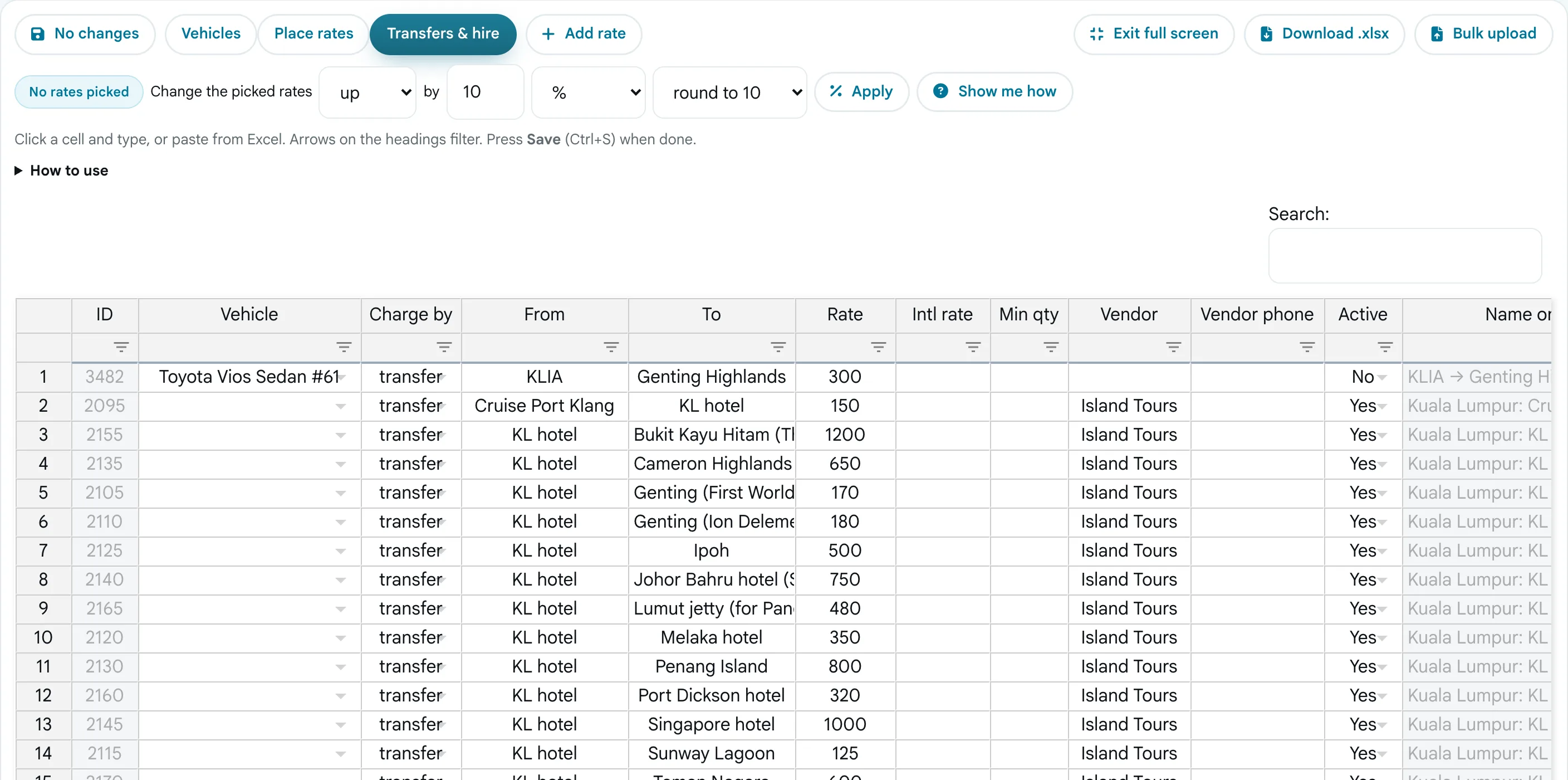
- Transfers & hire: every transfer, tour, hourly and daily rate tied to a vehicle, with From, To, the rate, the vendor and whether it is on quotes.
4. Upload transfer rates from Excel: the Service rates page
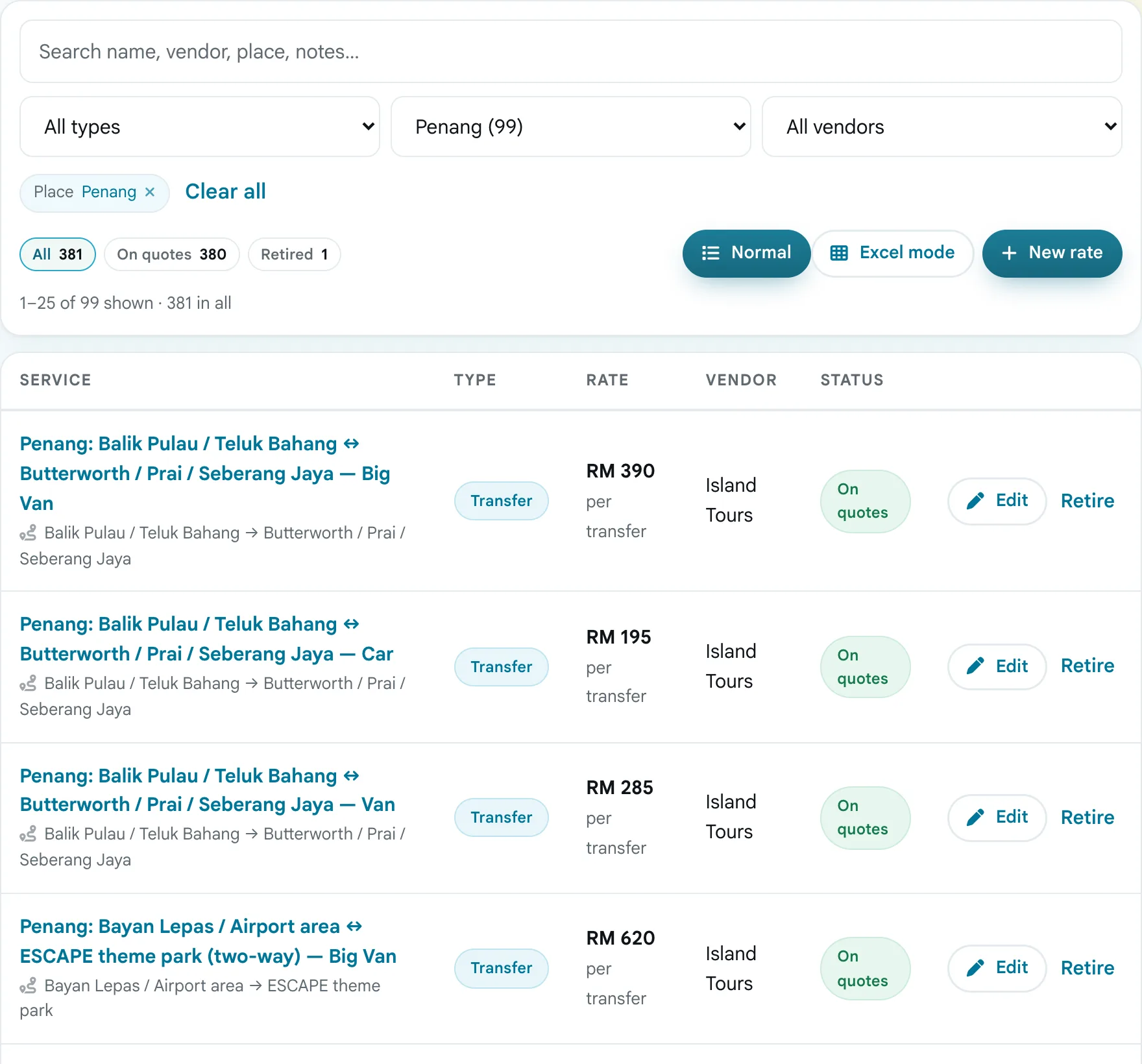
Airport transfers, city tours, guides, activities and meals now have their own page: Service rates, in the sidebar under Administration. Search by name, vendor or place, filter by type, place or vendor, and see at a glance which rates are on quotes and which are retired.
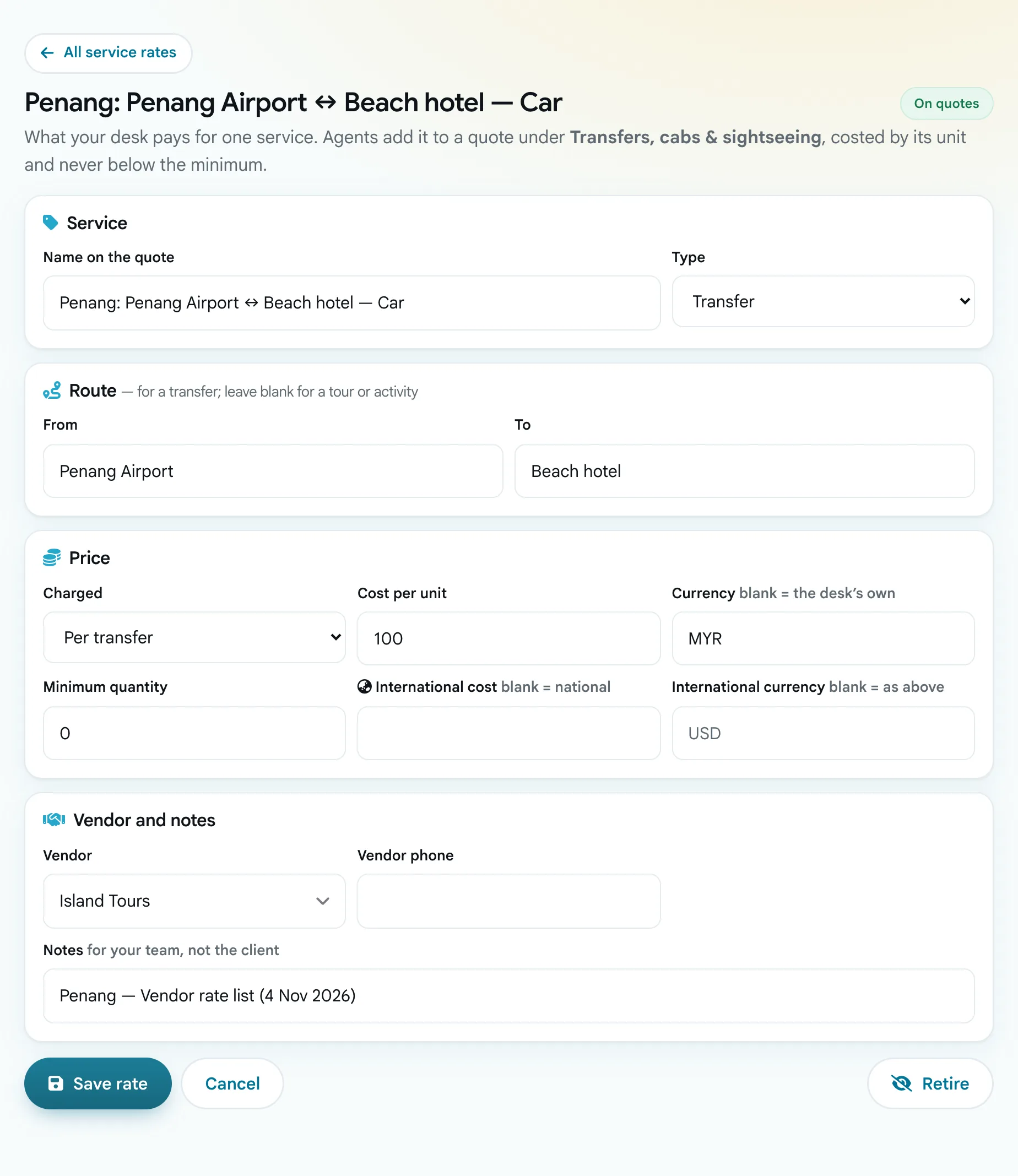
Click a rate, or New rate, to edit it on its own page, in four parts: the name agents see on the quote and its type; the route (From and To); the price, minimum and an international price; and the vendor with notes for your team. A new transfer is named from its route until you type a name, and Create and add another keeps the vendor for the next one.
To load a vendor's whole rate list at once:
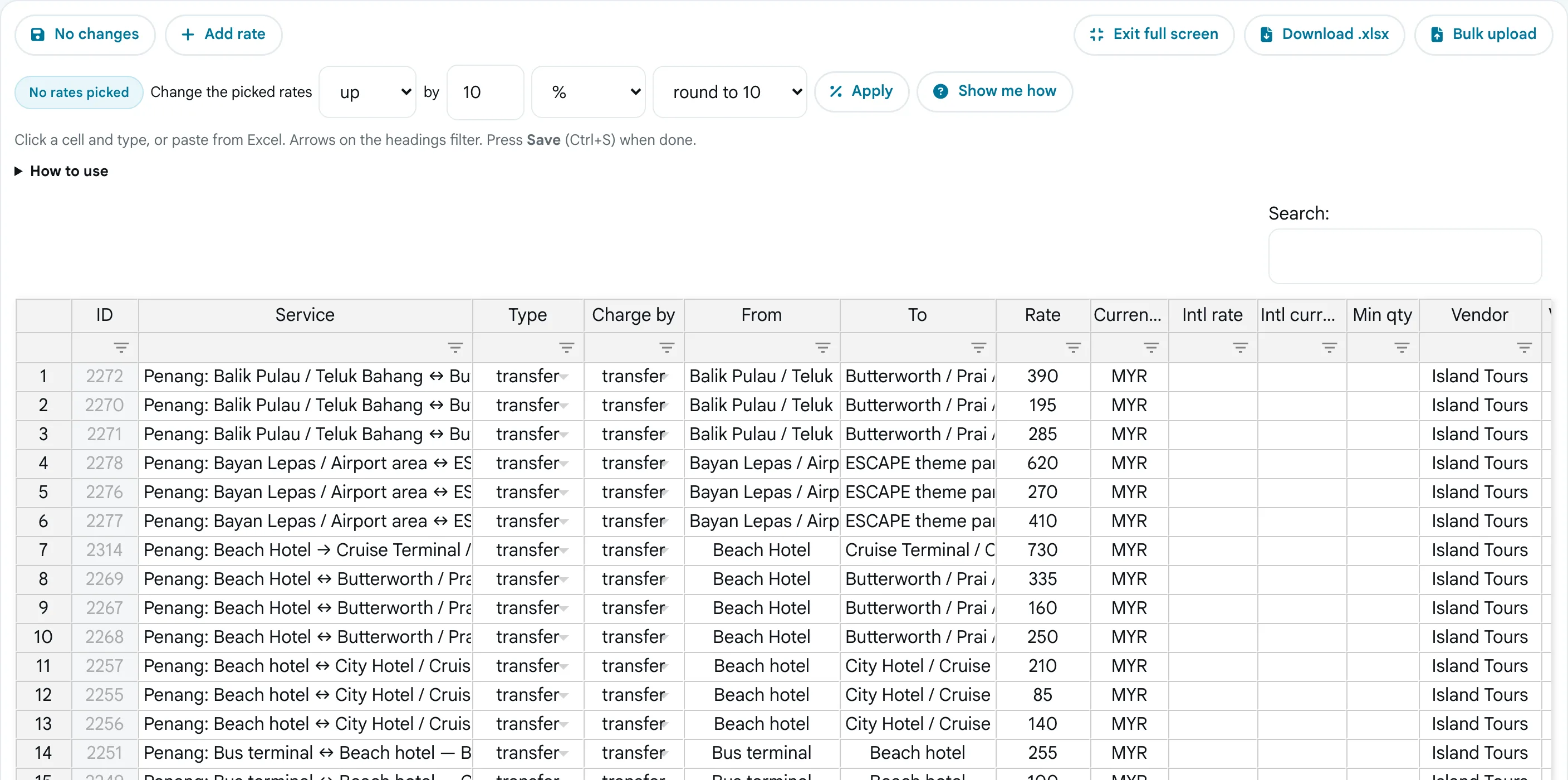
- On Service rates, filter to the vendor or place and press Excel mode.
- Press Download .xlsx. The file has the same headings as the sheet: ID, Service, Type, Charge by, From, To, Rate, Currency and the rest.
- In Excel or Google Sheets, change the prices. For a new rate, add a row and leave its ID blank. Type is transfer, sightseeing, guide, activity and so on; Charge by is trip, seat, km, transfer, day or hour.
- Press Bulk upload and pick the file (.xlsx or .csv). The changed cells and new rows appear in the sheet; nothing is saved yet.
- Check them and press Save. A row that cannot be saved is named in the message and stays on screen to fix.
Setting Active to No takes a rate off new quotes without deleting it, so last season's price is still there if you need it again.
Tips for working in the rate sheet
- Full screen hides the sidebar and header so the sheet fills the window; Esc goes back.
- The arrow under each heading filters that column; double-click a heading to sort.
- Ctrl+C and Ctrl+V copy and paste, Ctrl+Z undoes, and the small square at a cell's corner fills down.
- Download a copy before a big change. It is your record of the old prices.
Every screen has a Guide button that walks through it, and the Help page has step-by-step answers under "How do I edit many hotel or vehicle rates like a spreadsheet?" and "How do I load a vendor's transfer, tour or activity rate list?". Moving your whole quotation work off spreadsheets is covered in Moving travel quotations off the spreadsheet without stopping work, and the rest of this month's changes are in What's new in travee+: November 2026.
Stop rebuilding the same quotation.
One rate card, one branded document, sent in minutes instead of an afternoon.
See what it does